

Instance Copy
Copy an Instance
Section titled “Copy an Instance”When you right click on an instance, you can choose to copy it. After selecting this option, you will see a new window. You can choose an icon, name and a group for the new instance.
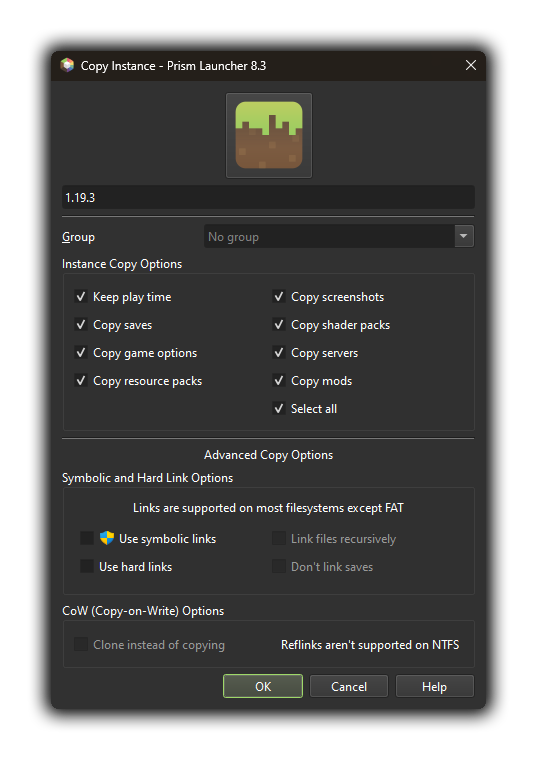
Instance Copy Options
Section titled “Instance Copy Options”This is where you can find options and copy settings for your new instance.
Keep play time
Section titled “Keep play time”This option will allow you to keep your playtime from your original instance, if this setting is enabled in Global Settings, see: Game Time
Copy saves
Section titled “Copy saves”This option allows you to copy all saved games from your original instance to your new one.
Copy game options
Section titled “Copy game options”This option allows you to copy all game settings, if you want your configuration to be cloned.
Copy resource packs
Section titled “Copy resource packs”This option allows you to copy all the resource packs to your new instance.
Copy screenshots
Section titled “Copy screenshots”This option allows you to copy all your screenshots to your new instance folder.
Copy shader packs
Section titled “Copy shader packs”This option allows you to copy all your shader packs to your new instance folder.
Copy servers
Section titled “Copy servers”This option allows you to copy all your servers to your new instance. You can find them in the multiplayer menu of your new instance.
Copy mods
Section titled “Copy mods”This option allows you to copy all your mods to your new instance folder.
Select all
Section titled “Select all”This option allows you to select all the precedent options.
Advanded Copy Options
Section titled “Advanded Copy Options”This is where you can set more advanced options, such as links or cloning.
Symbolic and Hard Link Options
Section titled “Symbolic and Hard Link Options”You can’t use these options if your partition is on FAT filesystem.
Use symbolic links
Section titled “Use symbolic links”This option will create a symbolic link between the two instances.
Use hard links
Section titled “Use hard links”This option will create a hard link between the two instances.
Link files recursively
Section titled “Link files recursively”This option will link all files, instead of just the parent folder.
Don’t link saves
Section titled “Don’t link saves”This option will disable the link of the saves. The world saves will be copied instead.
CoW (Copy-on-Write) Options
Section titled “CoW (Copy-on-Write) Options”Clone instead of copying
Section titled “Clone instead of copying”This option is only supported on APFS, BTRFS, BCACHEFS, REFS, XFS and ZFS filesystems.